🌐 Webhooks
Webhooks offer a powerful mechanism to receive real-time notifications of events like incoming SMS messages. This integration guide will walk you through setting up webhooks to receive such notifications directly from your device.
📩 Supported Events
-
 sms:received
messageId: Content-based IDmessage: SMS contentsender⭐: Sender's phone numberrecipient📍: Device's phone number that received the message (may benullif unavailable)simNumber: SIM index (nullable)receivedAt: Local timestamp
-
sms:data-received
messageId: Content-based IDdata: Base64-encoded data messagesender⭐: Sender's phone numberrecipient📍: Device's phone number that received the message (may benullif unavailable)simNumber: SIM index (nullable)receivedAt: Local timestamp
-
mms:received
messageId: Carrier-generated ID, if available, same astransactionIdotherwisetransactionId: Unique MMS transaction identifiersubject: Message subject line (nullable)size: Attachment size in bytescontentClass: MMS content classification (nullable)sender⭐: Sender's phone numberrecipient📍: Device's phone number that received the message (may benullif unavailable)simNumber: SIM index (nullable)receivedAt: Local timestamp
-
mms:downloaded
messageId: Device-local Android content-provider_id- not a global ID, do not dedup on it alonebody: Aggregated text content of the MMS (nullable)subject: Message subject line (nullable)attachments: Array of{ partId, contentType, name, size, data }partId: Content provider part IDcontentType: MIME type (e.g.image/jpeg)name: Filename (nullable)size: Size in bytes (nullable)data: Base64-encoded attachment content (nullable)
sender⭐: Sender's phone numberrecipient📍: Device's phone number that received the message (may benullif unavailable)simNumber: SIM index (nullable)receivedAt: Local timestamp
-
 sms:sent
messageId: Unique IDsender⭐: Device's phone numberrecipient📍: Recipient's phone numbersimNumber: SIM index (nullable)partsCount: Number of message partssentAt: Local timestamp
-
 sms:delivered
messageId: Unique IDsender⭐: Device's phone numberrecipient📍: Recipient's phone numbersimNumber: SIM index (nullable)deliveredAt: Local timestamp
-
 sms:failed
messageId: Unique IDsender⭐: Device's phone numberrecipient📍: Recipient's phone numbersimNumber: SIM index (nullable)reason: Error detailsfailedAt: Local timestamp
-
 sms:cancelled
messageId: Unique IDsender⭐: Device's phone numberrecipient📍: Recipient's phone numbersimNumber: SIM index (nullable)cancelledAt: Local timestamp
-
 system:ping
health: Healthcheck status
-
 app:started
simCards: Array of available SIM cards[{ slotIndex, simNumber, phoneNumber, carrierName, iccid }]
Outbound MMS Status Uses sms:* Events
Sending MMS messages reuses the existing outbound events — there are no mms:* outbound events and no server-side webhook changes. When the device finishes an outgoing MMS it reports the outcome directly with the standard fixed payload of the existing events:
sms:sent— the MMS was handed to the carrier successfully. This is the terminal success state for MMS: Android provides no delivery receipts for MMS, sosms:deliverednever fires for MMS messages.sms:failed— the MMS could not be sent (payload includesreason).sms:cancelled— the pending MMS was cancelled before sending (for example viaDELETE /3rdparty/v1/messages/{id}).
The payloads carry the same fields as for SMS (messageId refers to the outgoing message ID returned by POST /3rdparty/v1/messages). Incoming MMS events (mms:received, mms:downloaded) are unchanged. See MMS Support for details.
MMS messageId Is Device-Local, Not a Global Identity
Do not deduplicate MMS webhooks on messageId alone. Read this first:
mms:downloadedmessageIdis a per-device counter. It is the Android content provider row_idfromcontent://mms, allocated by the handset itself. It restarts from scratch after handset replacement, so the same ID names different messages on different devices and reappears after a device swap.- The two MMS events carry different IDs for the same message.
mms:receivedandmms:downloadeddo not share amessageIdvalue, so you cannot pair the arrival notification with the download by ID. - Build the dedup key from
deviceId. Every webhook payload carries a top-leveldeviceIdfield, so the recommended key isdeviceId+messageId(ordeviceId+ the envelopeidwhen you only need to suppress exact retries). The envelope is built once and reused verbatim across retries, so a retried delivery repeats the identical pair - retry deduplication keeps working while the key also survives device swaps.
Deduplicating on messageId alone silently drops any MMS whose reused ID collides with a key already stored after a handset swap. See Deduplicating Incoming MMS for a worked example.
📦 Batch Webhooks
Batch webhooks deliver multiple messages in a single payload, triggered during inbox refresh operations. They use the same fields as individual events, wrapped in a messages array. Messages are ordered chronologically inside the batch.
Batch webhooks are available for:
| Event | Description |
|---|---|
| sms:batch:received | Batch of received SMS messages |
| sms:batch:data-received | Batch of received data SMS messages |
| mms:batch:received | Batch of received MMS messages |
| mms:batch:downloaded | Batch of downloaded MMS messages |
Batch vs Individual
Use batch webhooks when exporting historical messages to reduce HTTP overhead and ensure chronological ordering. Individual webhooks are better for real-time notifications of new messages.
Batch Size
Each batch payload contains at most 100 messages. If the export contains more messages, they will be split into multiple sequential batch webhooks.
Batch Payload Example
{
  "deviceId": "ffffffffceb0b1db0000018e937c815b",
  "event": "sms:batch:received",
  "id": "abc123",
  "webhookId": "xyz789",
  "payload": {
    "messages": [
      {
        "messageId": "a1b2c3",
        "message": "First message",
        "sender": "+1234567890",
        "recipient": "+0987654321",
        "simNumber": 1,
        "receivedAt": "2024-06-22T15:46:11.000+07:00"
      },
      {
        "messageId": "d4e5f6",
        "message": "Second message",
        "sender": "+1234567890",
        "recipient": "+0987654321",
        "simNumber": 1,
        "receivedAt": "2024-06-22T15:47:22.000+07:00"
      }
    ]
  }
}
sender and recipient May Be null
For inbound events (sms:received, sms:data-received, mms:received, mms:downloaded), recipient represents the device's own phone number and can be null if the app lacks READ_PHONE_STATE permission or the carrier doesn't provide the number. For outbound events like sms:delivered, recipient is always the recipient's number. sender (the device's own number) may similarly be null for outbound events if the device number is unavailable.
Prerequisites ✅
Before you begin, ensure the following:
- ⚠️ You have SMS Gateway for Android™ installed on your device in Local, Cloud, or Private mode.
- 🔒 You have a server to receive HTTPS requests:
- For public servers: Use a valid SSL certificate
- For private IPs (192.168.x.x, 10.x.x.x): Generate trusted certificates using our Certificate Authority
- Only
http://127.0.0.1can use HTTP without encryption
- 🌐 Network access:
- Device must have internet access to reach external endpoints
- For local networks: Ensure device and server are on same subnet
- Without internet: See offline webhooks
Step-by-Step Integration 📋
Step 1: Set Up Your Server 🖥️
For your webhooks to work, you need an HTTP server capable of handling HTTPS POST requests. This server will be the endpoint for the incoming webhook data.
- Production: Use a valid SSL certificate.
- Testing: Tools like webhook.site or our Webhook Tester provide temporary endpoints to capture payloads.
Step 2: Register Your Webhook Endpoint 📝
To start receiving webhook notifications, you must register your webhook endpoint with the device. Utilize the curl command to send a POST request to the appropriate address, depending on whether you're in Local, Cloud, or Private mode.
- Local mode:
- Use the device’s local IP and port (e.g.,
https://192.168.1.10:8080/webhooks) - Only
http://127.0.0.1can use HTTP without encryption - For other private IPs: HTTPS with a valid SSL certificate is required
- Use the device’s local IP and port (e.g.,
- Private mode: Use your server’s domain name or IP and port (e.g.,
https://your-server.com/3rdparty/v1/webhooks). - Cloud mode: Use
https://api.sms-gate.app/3rdparty/v1/webhooks.
curl -X POST -u <username>:<password> \
  -H "Content-Type: application/json" \
  -d '{ "url": "https://your-server.com/webhook", "event": "sms:received" }' \
  https://api.sms-gate.app/3rdparty/v1/webhooks
Replace:
<username>:<password>: Credentials from the Home tab of the app.https://your-server.com/webhook: The URL of your webhook endpoint.https://api.sms-gate.app/3rdparty/v1/webhooks: The appropriate URL for your mode.
In Cloud and Private modes, please allow some time for the webhooks list to synchronize with your device.
Multiple Events
Each webhook is registered for a single event. To listen for multiple events, register separate webhooks.
Device-Specific Webhooks
To register a webhook for a specific device, include the device_id parameter in the API request. If the device_id is not provided, the webhook will be applied to all devices associated with the account.
Step 3: Verify Your Webhook ✔️
You can verify that it has been successfully registered by executing the following curl command:
curl -X GET -u <username>:<password> \
  https://api.sms-gate.app/3rdparty/v1/webhooks
Separate Lists
Local mode and Cloud/Private mode maintain separate webhook lists. Use the corresponding API URL to view registrations.
- Open the SMS Gateway app 📱
- Navigate to Settings > Webhooks > Registered webhooks
- A list of registered webhooks is displayed, showing:
- Endpoint URL
- Webhook ID
- Event type
- Source (Local/Cloud)
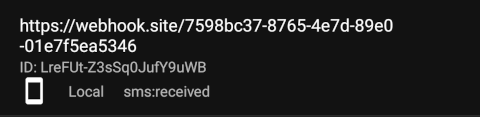
Webhook Registration Notification
When a new sms:received webhook is registered, the app displays a notification on the device, ensuring immediate awareness of active webhooks and facilitating quick security reviews.
Step 4: Test the Webhook 🧪
sms:received: Send an SMS to the device.sms:data-received: Send a data SMS to port 53739.mms:received: Send an MMS message to the device.mms:downloaded: Wait for the MMS to fully download (fires automatically aftermms:receivedwhen download completes).sms:sent/delivered/failed: Send an SMS or MMS from the app to trigger these events (for MMS,sms:deliverednever fires).sms:cancelled: Send an SMS or MMS via the cloud/private API, then cancel it viaDELETE /3rdparty/v1/messages/{id}while the message is still pending.system:ping: Enable the ping feature in the app’s Settings > Ping.app:started: Restart the app.
Step 5: Receive the Payload 📤
Your server will receive a POST request with a payload like:
{
  "deviceId": "ffffffffceb0b1db0000018e937c815b",
  "event": "sms:received",
  "id": "Ey6ECgOkVVFjz3CL48B8C",
  "payload": {
    "messageId": "abc123",
    "message": "Android is always a sweet treat!",
    "sender": "6505551212",
    "recipient": "+1234567890",
    "simNumber": 1,
    "receivedAt": "2024-06-22T15:46:11.000+07:00"
  },
  "webhookId": "LreFUt-Z3sSq0JufY9uWB"
}
{
  "deviceId": "ffffffffceb0b1db0000018e937c815b",
  "event": "sms:data-received",
  "id": "Ey6ECgOkVVFjz3CL48B8C",
  "payload": {
    "messageId": "abc123",
    "data": "SGVsbG8gRGF0YSBXb3JsZCE=",
    "sender": "6505551212",
    "recipient": "+1234567890",
    "simNumber": 1,
    "receivedAt": "2024-06-22T15:46:11.000+07:00"
  },
  "webhookId": "LreFUt-Z3sSq0JufY9uWB"
}
{
  "deviceId": "ffffffffceb0b1db0000018e937c815b",
  "event": "mms:received",
  "id": "Ey6ECgOkVVFjz3CL48B8C",
  "payload": {
    "messageId": "mms_12345abcde",
    "sender": "6505551212",
    "recipient": "+1234567890",
    "simNumber": 1,
    "transactionId": "T1234567890ABC",
    "subject": "Photo attachment",
    "size": 125684,
    "contentClass": "IMAGE_BASIC",
    "receivedAt": "2025-08-23T05:15:30.000+07:00"
  },
  "webhookId": "LreFUt-Z3sSq0JufY9uWB"
}
{
  "deviceId": "ffffffffceb0b1db0000018e937c815b",
  "event": "mms:downloaded",
  "id": "Ey6ECgOkVVFjz3CL48B8C",
  "payload": {
    "messageId": "mms_12345abcde",
    "sender": "6505551212",
    "recipient": "+1234567890",
    "simNumber": 1,
    "body": "Hello! Here is the photo.",
    "subject": "Photo attachment",
    "attachments": [
      {
        "partId": 1,
        "contentType": "image/jpeg",
        "name": "photo.jpg",
        "size": 125684,
        "data": "/9j/4AAQ..."
      }
    ],
    "receivedAt": "2025-08-23T05:15:35.000+07:00"
  },
  "webhookId": "LreFUt-Z3sSq0JufY9uWB"
}
{
  "deviceId": "ffffffffceb0b1db0000018e937c815b",
  "event": "sms:sent",
  "id": "Ey6ECgOkVVFjz3CL48B8C",
  "payload": {
    "messageId": "msg-456",
    "sender": "+1234567890",
    "recipient": "+9998887777",
    "simNumber": 1,
    "partsCount": 1,
    "sentAt": "2026-02-18T02:05:00.000+07:00"
  },
  "webhookId": "LreFUt-Z3sSq0JufY9uWB"
}
{
  "deviceId": "ffffffffceb0b1db0000018e937c815b",
  "event": "sms:delivered",
  "id": "Ey6ECgOkVVFjz3CL48B8C",
  "payload": {
    "messageId": "msg-789",
    "sender": "+1234567890",
    "recipient": "+9998887777",
    "simNumber": 1,
    "deliveredAt": "2026-02-18T02:10:00.000+07:00"
  },
  "webhookId": "LreFUt-Z3sSq0JufY9uWB"
}
{
  "deviceId": "ffffffffceb0b1db0000018e937c815b",
  "event": "sms:failed",
  "id": "Ey6ECgOkVVFjz3CL48B8C",
  "payload": {
    "messageId": "msg-000",
    "sender": "+1234567890",
    "recipient": "+4445556666",
    "simNumber": 3,
    "failedAt": "2026-02-18T02:15:00.000+07:00",
    "reason": "Network error"
  },
  "webhookId": "LreFUt-Z3sSq0JufY9uWB"
}
{
  "deviceId": "ffffffffceb0b1db0000018e937c815b",
  "event": "sms:cancelled",
  "id": "Ey6ECgOkVVFjz3CL48B8C",
  "payload": {
    "messageId": "msg-456",
    "sender": "+1234567890",
    "recipient": "+9998887777",
    "simNumber": 1,
    "cancelledAt": "2026-06-22T10:00:00.000+07:00"
  },
  "webhookId": "LreFUt-Z3sSq0JufY9uWB"
}
Timely Response
Your server must respond with a 2xx status within 30 seconds to prevent retries
Retry Policy
The app implements an exponential backoff retry strategy: it waits 10 seconds before the first retry, then 20 seconds, 40 seconds, and so on, doubling the interval each time. By default, the app will retry 14 times (approximately 2 days) before giving up. You can specify a custom retry count in the app's Settings > Webhooks.
Step 6: Deregister a Webhook 🗑️
If you no longer wish to receive webhook notifications, deregister your webhook with the following curl command:
curl -X DELETE -u <username>:<password> \
  'https://api.sms-gate.app/3rdparty/v1/webhooks/LreFUt-Z3sSq0JufY9uWB'
Webhook Tester 🧪
The Webhook Tester provides a convenient way to inspect webhook requests without setting up your own server. Powered by webhook-tester, it captures incoming HTTP requests and displays them in a web UI for real-time debugging. Available at https://webhook.sms-gate.app for all users.
Quick Start
- Visit the Webhook Tester URL in your browser
- A session is automatically created, generating a unique URL like
https://webhook.sms-gate.app/550e8400-e29b-41d4-a716-446655440000 - Register this URL as your webhook endpoint:
curl -X POST -u <username>:<password> \
  -H "Content-Type: application/json" \
  -d '{
    "url": "https://webhook.sms-gate.app/550e8400-e29b-41d4-a716-446655440000",
    "event": "sms:received"
  }' \
  https://api.sms-gate.app/3rdparty/v1/webhooks
Constraints
| Setting | Value |
|---|---|
| Session TTL | 24 hours |
| Max request body | 10 KB |
| General rate limit | 10 requests/second (burst 20) |
| Capture rate limit | 5 requests/second (burst 10) |
Tip
The Webhook Tester is ideal for development and debugging only. Do not send production or sensitive SMS traffic to it. For production, use your own HTTPS endpoint with payload signature verification.
Local Network Solutions 🏠
For webhooks within private networks:
-
Project CA Certificates
Generate trusted certificates for private IPs using our Certificate Authority -
ADB Port Forwarding
Then register webhook to
Use127.0.0.1with reverse port forwarding:http://127.0.0.1:9876/webhook -
Secure Tunnels
Services like Cloudflare Tunnel or ngrok provide HTTPS endpoints -
Insecure Build Variant (Not Recommended)
For local development and testing, use the insecure build variant that allows communication over HTTP without SSL.
Multipart Message Behavior 📨
When sending SMS messages longer than the standard limits (160 characters for GSM‑7 or 70 characters for UCS‑2/Unicode), the app automatically splits the message into multiple parts before transmission. This multipart behavior affects webhook delivery in specific ways:
| Event | Behavior |
|---|---|
sms:received | Triggered once after all parts of an incoming multipart message are received and assembled |
sms:sent | Triggered once when all parts of the outgoing message are successfully sent, the partsCount field is set to the number of parts |
sms:delivered | Triggered once for each individual part of the message |
sms:failed | Triggered once if any part of the message fails to send or deliver; other parts may still succeed |
sms:cancelled | Triggered once when the pending message is cancelled before any part is sent |
Handling Multipart Delivery Reports
To avoid processing duplicate deliveries in your webhook handler:
- Use
messageIdto group related delivery reports - Deduplicate based on
id - Consider the message fully delivered when you receive delivery confirmations for all expected parts
Security Considerations 🔐
- Review Registered Webhooks Periodically: Regularly audit your webhook URLs to guard against unauthorized or stale endpoints; the app also shows periodic reminders for this review.
- Use HTTPS: Encrypts data in transit.
- Secure Your Endpoint: Protect your webhook endpoint against unauthorized access. Prefer HMAC signature verification (below).
- Rotate Credentials: Regularly update passwords.
Payload Signing 🔏
Webhook requests are signed with HMAC-SHA256 for verification. The device includes these headers:
X-Signature- Hexadecimal HMAC signatureX-Timestamp- Unix timestamp (seconds) used in signature generation
The signing key is randomly generated at first request and can be changed in Settings → Webhooks → Signing Key

Verification process:
- Get raw request body as received (before JSON parsing)
- Concatenate with
X-Timestampvalue - Compute HMAC-SHA256 using the signing key
- Compare result with
X-Signatureheader
package webhooks

import (
  "crypto/hmac"
  "crypto/sha256"
  "encoding/hex"
)

func VerifySignature(secretKey, payload, timestamp, signature string) bool {
  message := payload + timestamp
  mac := hmac.New(sha256.New, []byte(secretKey))
  mac.Write([]byte(message))
  expectedMAC := mac.Sum(nil)
  expectedSignature := hex.EncodeToString(expectedMAC)

  return hmac.Equal([]byte(expectedSignature), []byte(signature))
}
import hmac
import hashlib


def verify_signature(secret_key: str, payload: str, timestamp: str, signature: str) -> bool:
    message = (payload + timestamp).encode()
    expected_signature = hmac.new(secret_key.encode(), message, hashlib.sha256).hexdigest()
    return hmac.compare_digest(expected_signature, signature)
const crypto = require('crypto');

function verifySignature(secretKey, payload, timestamp, signature) {
    const message = payload + timestamp;
    const expectedSignature = crypto
        .createHmac('sha256', secretKey)
        .update(message)
        .digest('hex');

    const sig = String(signature).trim().toLowerCase();
    if (sig.length !== expectedSignature.length) return false;
    return crypto.timingSafeEqual(
        Buffer.from(expectedSignature, 'hex'),
        Buffer.from(sig, 'hex')
    );
}
Best Practices
- Use constant-time comparison to prevent timing attacks.
- Validate timestamps (e.g., accept only timestamps within ±5 minutes) to prevent replay attacks.
- Store secret keys securely (e.g., environment variables, secure vaults).
Inspecting the Delivery Queue 🔍
Pending and failed webhook deliveries are inspectable inside the app, without attaching a debugger or reading logcat:
- Open app → Settings tab → Webhooks
- Tap Webhook Queue ("View recent webhook queue entries")
The queue screen lists the most recent entries with filter chips for each state - All, Pending, Processing, Completed, Failed, Permanently Failed - each showing a live count. Filter chips with a count of zero are hidden, so the screen tells you at a glance whether anything is stuck.
Tapping an entry opens its detail view, which shows the target URL, current status, retry count, last error, created and next attempt timestamps, and the exact payload that was queued.
Diagnosing 'webhook not firing'
This is the first place to look, because it separates the two failure modes:
- Nothing in the queue - the event was never emitted. Check that the event type is registered on the webhook, that the webhook matches the device, and that the corresponding feature (permissions, Content Provider Monitoring) is active.
- Entry stuck in
Pending/Processing/Failed- the event was queued and the problem is on the delivery side. ReadLast errorand check theURL, your TLS certificate, and the Retry Policy counter.
This Is a Recent-History View
Entries that reached a terminal state (Completed or Permanently Failed) are purged after a retention window (7 days by default), and the stored payload is deleted with the entry. Treat the queue screen as short-term diagnostics, not as a delivery archive - the payload for an older entry may be gone by the time you open it.
Troubleshooting 🛠️
No Webhooks Received?
- Verify the webhook URL is correct
- Ensure the device can reach your server
- Verify SSL certificate validity
- Check device and server logs
- Inspect the in-app delivery queue to see whether the event was queued at all
- Test with webhook.site or our Webhook Tester temporary endpoint
Signature Validation Issues
- Ensure timestamp is UTC Unix time in seconds
- Use raw body before JSON decoding
See Also 📚
- Web Dashboard — graphical webhook management UI
- FAQ
- Status Tracking
- Private Webhook Certificate Setup
- API Documentation
Examples 💡
- Flask webhook processor: Demonstrates registration, HMAC validation, and payload handling with Flask.
- FastAPI webhook processor: Demonstrates registration, HMAC validation, and payload handling with FastAPI.
- Discord Forwarder Function: Forwards SMS to Discord using a cloud function.
- Telegram Forwarder Function: Forwards SMS to Telegram using a cloud function.
- Web Client: Node.js client for sending/receiving SMS via Socket.io.
- Google Sheets - Google Apps Script integration to automatically log incoming SMS messages to Google Sheets.